October MagicDrop: what’s new in MagicSchool

Find your favorite tools faster, create custom images in your documents, and get more out of Raina, plus new Student Rooms controls for districts.

Find your favorite tools faster and create classroom resources with more flexibility in this month's MagicDrop.
Between planning lessons and adapting materials for different learners, you have plenty to think about during the school day. This month's MagicDrop brings updates that help you spend less time navigating tools and more time creating materials that work for your classroom.
We've also introduced new Student Rooms controls to help districts establish clear expectations for student AI use. Here's what you can explore this October.
Your favorite tools, easier to find
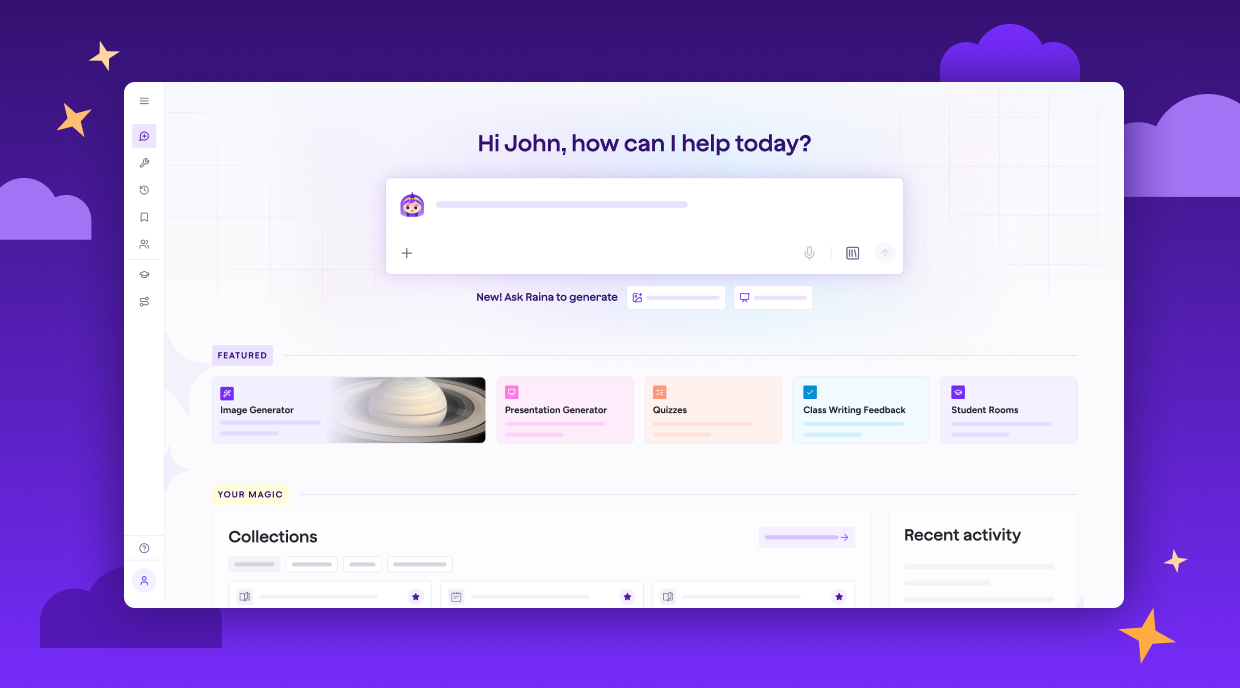
Have a lesson to plan or a quiz to put together? You can now jump straight into some of MagicSchool's most popular tools from the new Featured section on your homepage.
You'll find quick access to Image Generator, Presentation Generator, Quizzes, Class Writing Feedback, and Student Rooms, so you can get started without searching through the full tool library.
The Featured section reflects the tools available through your plan and district, helping you make the most of the resources already available to you.
Add custom images to classroom materials without leaving your document
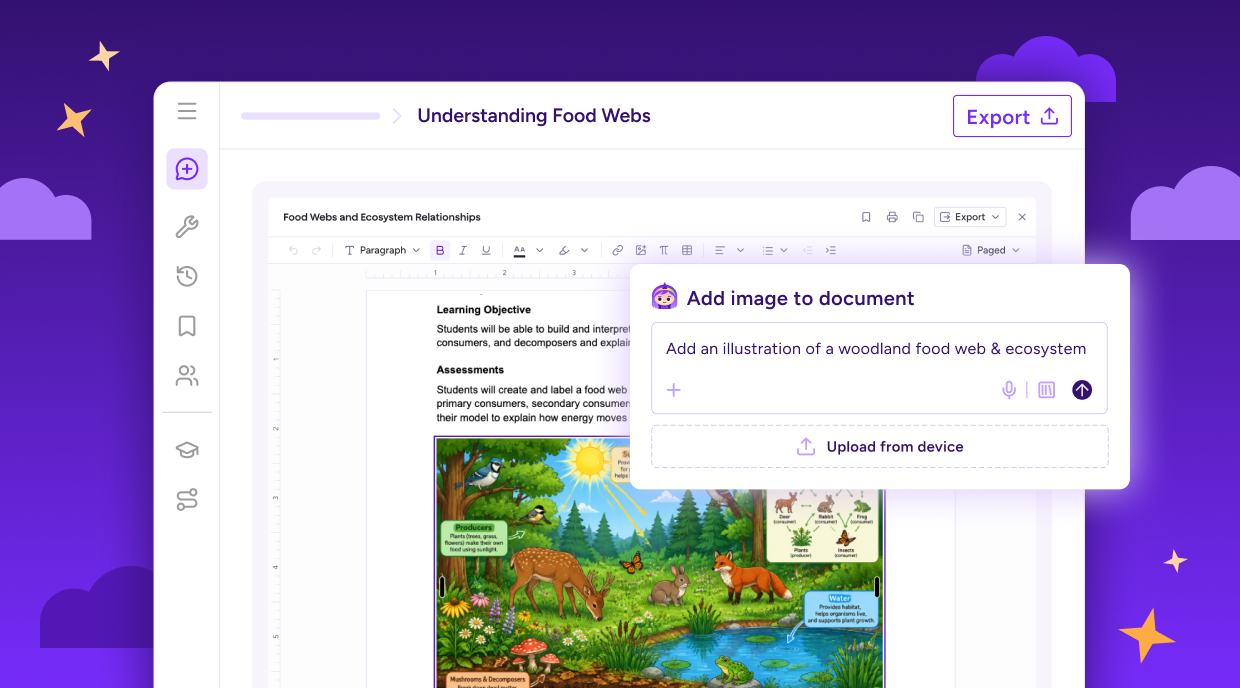
You can now generate images directly inside MagicSchool's document editor, making it easier to create illustrated worksheets and other classroom materials without switching between tabs or downloading and uploading files.
Imagine you're creating a worksheet about the water cycle. You can generate a diagram to accompany your questions and instructions, using a suggested image prompt based on your request or customizing it to fit your lesson.
Want to try a different illustration? You can regenerate or replace an image without disrupting your layout, so you can experiment until you've got just what you need for your lesson.
More flexibility to make every resource your own
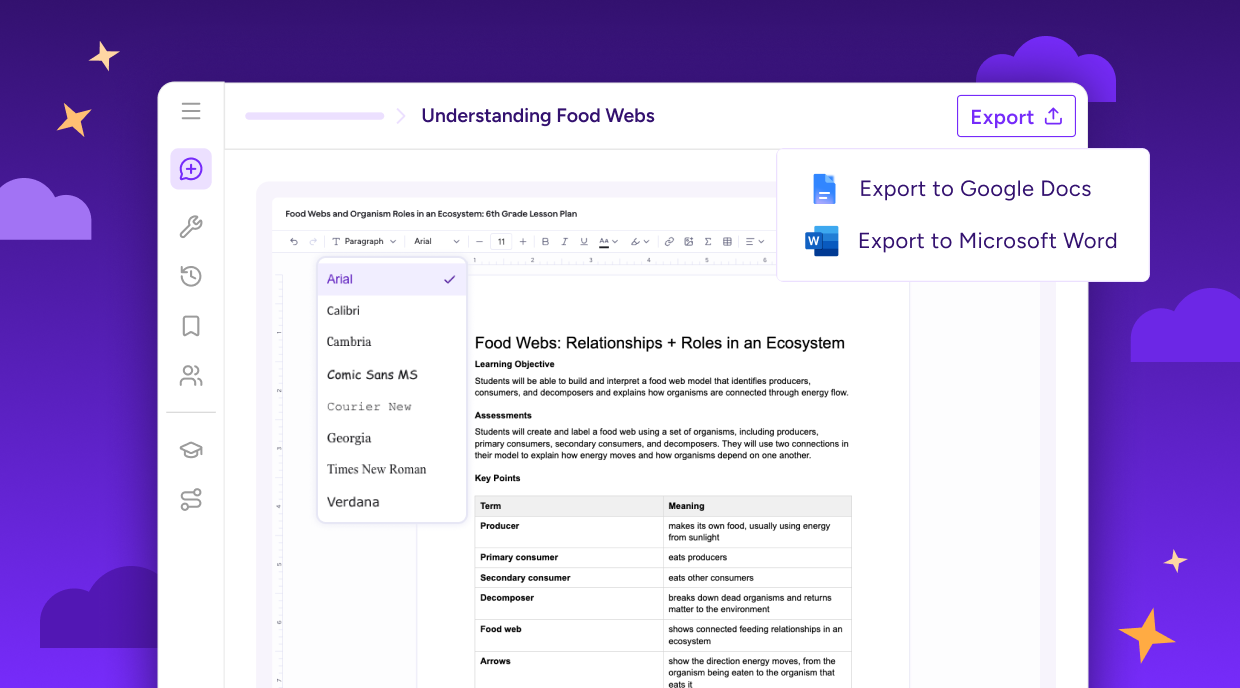
You have more control over how your classroom materials look, with new formatting options that carry through as you edit and share your work.
Choose from eight fonts and font sizes ranging from 8 to 96, with your selections preserved when you print or export to Word or Google Docs. When you ask Raina to rewrite a section, she'll also keep your existing font, size, color, and highlighting, so you can focus on the content without having to redo the formatting.
We've also made printing more convenient, with the print dialog opening directly over your document. Improvements to keyboard navigation and screen reader support make the editor easier to navigate, too.
Less typing, more creating with Raina
.png)
The more context Raina has about what you're creating, the better she can tailor her response. Now, when Raina asks a follow-up question, you may see quick, tappable answers that help you share what you have in mind without typing out every detail.
Say you're creating a classroom activity and Raina asks about the grade level or what kind of activity you have in mind. You can choose from suggested answers, select more than one when it makes sense, or write your own. And if you'd rather get started right away, you can skip the questions and Raina will use suggested defaults to keep things moving.
Helping districts set clear boundaries for student AI use
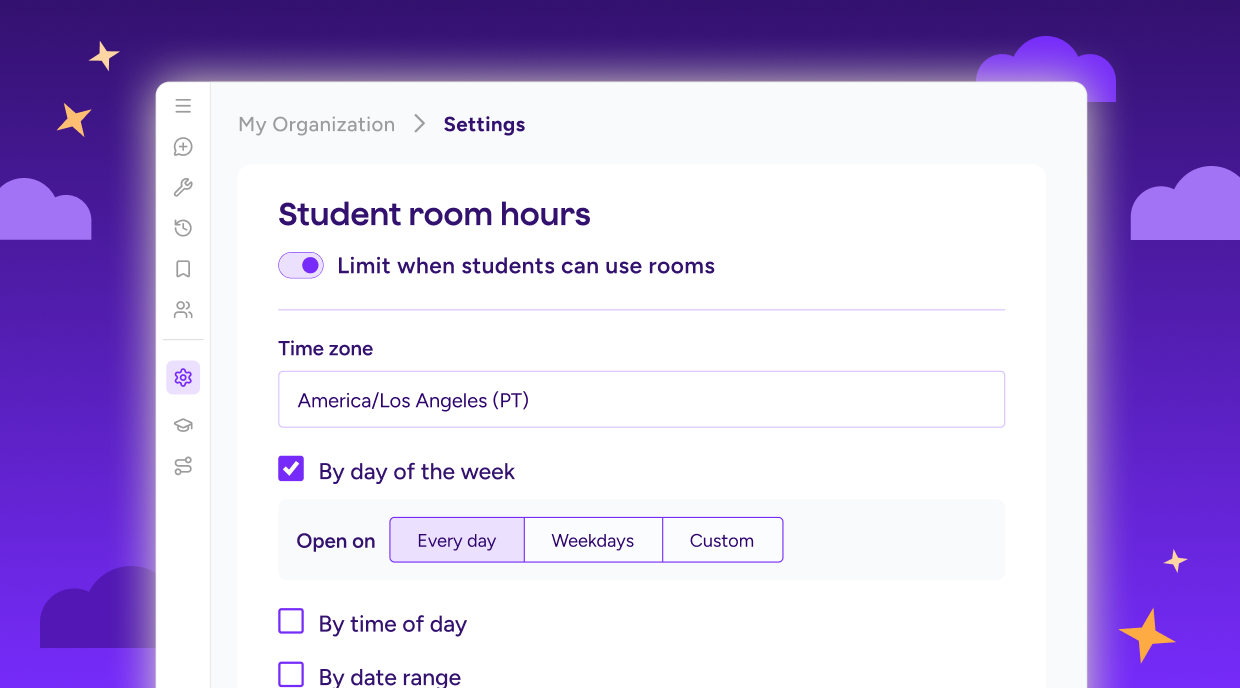
District administrators can now set a daily pause window for Student Rooms across every school in their organization, helping reinforce expectations for when students can use AI.
For example, a district might choose to pause Student Rooms between 10 p.m. and 5 a.m. to limit access outside school hours. During that window, Student Rooms automatically pause, even if a session is already underway.
Teachers can continue scheduling Student Rooms outside the designated window, giving schools flexibility within the expectations set by their district.
Explore what's new in MagicSchool
We hope these updates give you a little more time for the parts of teaching you love, and maybe even inspire something new for your classroom!
Ready to give them a try? Log in to explore what's new, and let us know what you think. We love hearing from you, and your ideas help shape what comes next.
Where can I find MagicSchool's most popular AI tools?
You can find tools like Presentation Generator, Quizzes, and Image Generator in the Featured section of your MagicSchool homepage, depending on your plan and district.
Can I add AI-generated images to worksheets in MagicSchool?
Yes, you can generate and add custom images directly inside MagicSchool's document editor without downloading or uploading files.
Will MagicSchool keep my formatting when I edit or export a document?
Yes, MagicSchool preserves your font choices when exporting documents, and Raina keeps existing formatting when rewriting text.
How can I get better results from Raina in MagicSchool?
You can give Raina more context by selecting suggested answers to follow-up questions or typing your own responses, helping her tailor resources to your classroom.
Can schools limit when students use MagicSchool Student Rooms?
Yes, district administrators can set daily pause windows that automatically restrict Student Rooms access across their schools.